
Follow the process below to borrow books from CloudLibrary and transfer them to your ereader device.
Borrow and download your book
- Go to CloudLibrary and choose your library from the drop-down menu.
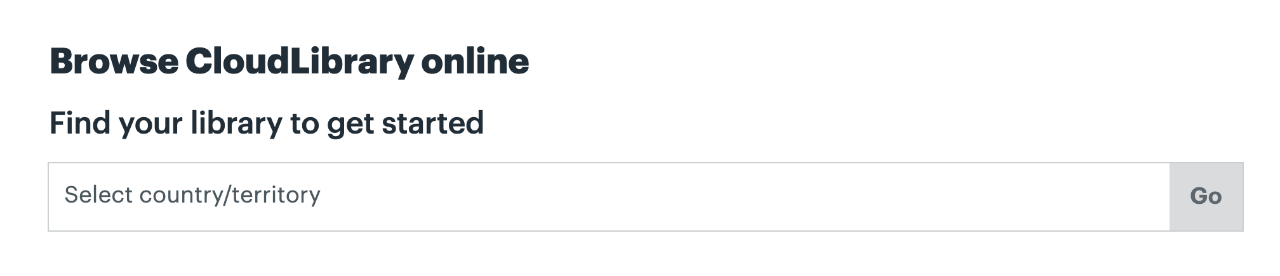
- Click on the Login button in the upper right. Input your Library ID and PIN (if prompted).

- Search your library’s collection. When you find your desired book, borrow it!
- Once borrowed, click the cover image to access the Book Details screen and click Download for offline reading.
Note: This link can also be accessed by navigating to your My Books tab > CURRENT > clicking the vertical dots > Download for offline reading
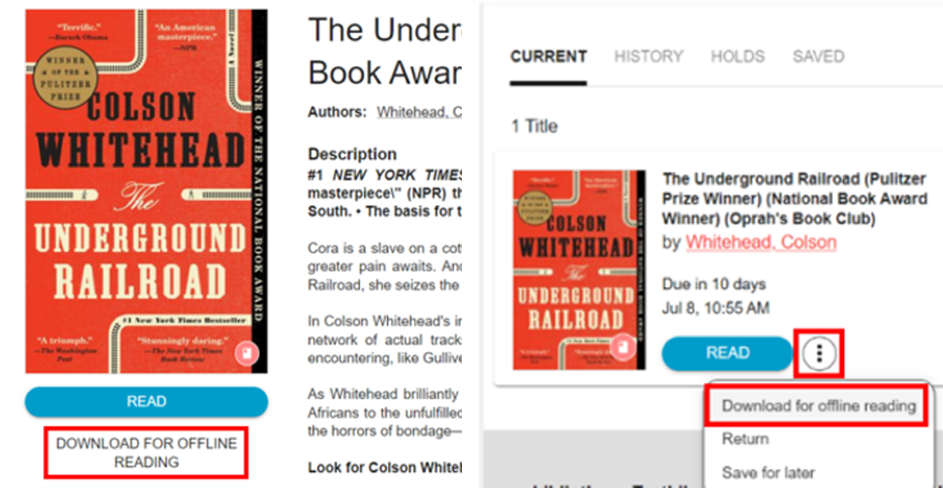
- The file will download to your computer’s designated download folder (often Downloads).
Set up Adobe Digital Editions (ADE)
To read this eBook file, you need Adobe Digital Editions installed on your computer. If you do not have it, download the latest version here: Get Adobe Digital Editions.
Choose the path that applies to you:
Path A: I am a NEW ADE user
- Go to the ByteBooks Transitions page.
- Select Create Your ByteBooks Account.

- Create your new ID by entering the requested details.

- Select I agree to the Privacy Policy and click the Create Account & Verify button.
- Check your email. You will receive an OTP (One Time Password) from noreply@dtsbytebooks.com.

- Enter this OTP on the website in the OTP field and click Verify OTP.

- Open Adobe Digital Editions to sign back in. When asked for your Adobe ID and Password, enter your ByteBooks ID and Password that you just created.
- Click on the Authorize button.

Path B: I am an EXISTING ADE user
ADE has transitioned to ByteBooks. Existing users who are already signed into ADE can go straight to Add the Book to your eReader.
If you are not already signed in, sign in to Adobe Digital Editions with your Adobe ID and password.
If you are receiving the below error message when trying to sign in, you must create a ByteBooks account using the following steps.

- Go to the ByteBooks Transitions page.
- Select Already have an Adobe ID account

- On the Create Your Account page, enter your email address and password. "I have an existing Adobe account to migrate" should be preselected. Select I agree to the Privacy Policy and click Create Account & Verify.

- Check your email. You will receive an OTP (One Time Password) from noreply@dtsbytebooks.com.

- Enter this OTP on the website in the OTP field and click Verify OTP.

- Open Adobe Digital Editions to sign back in. When asked for your Adobe ID and Password, enter your ByteBooks ID and Password that you just created.
- Click on the Authorize button.

Add the Book to your ereader
- In Adobe Digital Editions, click on File from the upper menu and choose Add to Library.
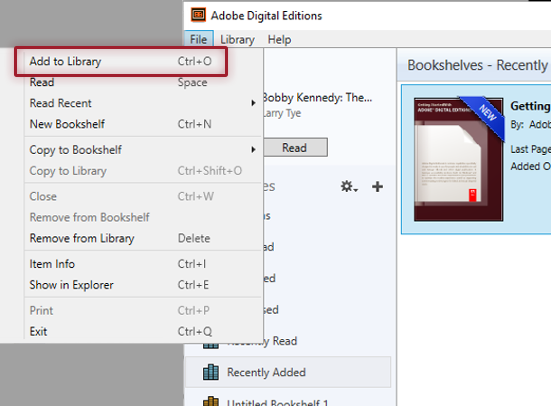
- Navigate to the folder with your downloaded file and find the book file.
Note: If you don’t see the file, you may have to choose Adobe Content Server Message (.acsm) as the file type.
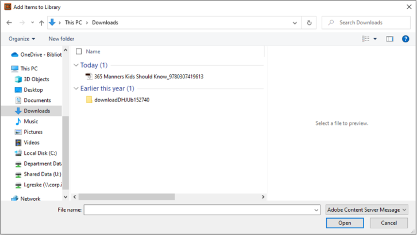
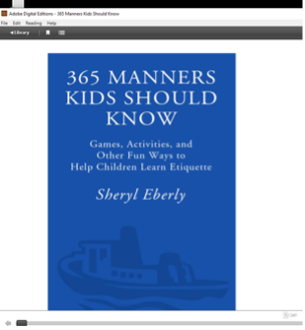
- Select the file and click Open. The book will now open in Adobe Digital Editions.
Note: If you are experiencing issues with your titles being grayed out in ADE, navigate to your computer’s designated download folder and double-click. They should automatically open in ADE.
- Connect your ereader to your computer and use your normal ADE-to-device process to transfer and read the book.
If you need additional help with using Adobe Digital Editions, please refer to their help page.